Installing Rowboat
Rowboat is available as a native desktop application for macOS, Windows, and Linux.Download
macOS
Windows
Linux
Platform-specific installation
- macOS
- Windows
- Linux
Install from DMG
- Download the
.dmgfile for macOS - Open the downloaded file
- Drag Rowboat to your Applications folder
- Launch Rowboat from Applications
Data location
Rowboat stores all data in:Uninstall
- Quit Rowboat
- Move Rowboat.app to Trash from Applications
- (Optional) Delete
~/.rowboat/to remove all data
Google setup
Rowboat requires a Google OAuth Client ID to connect Gmail, Calendar, and Drive.1
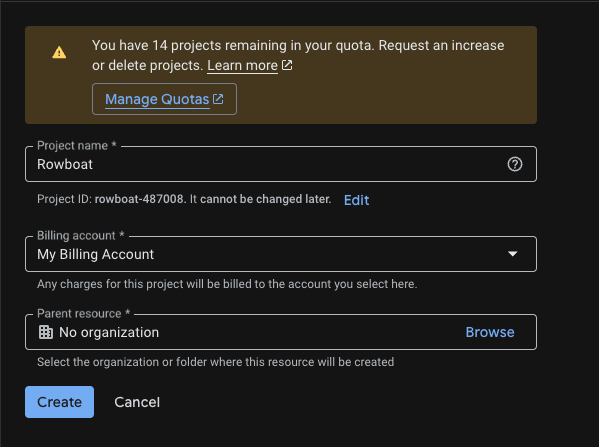
Create Google Cloud project
- Go to Google Cloud Console
- Click Create Project
- Enter a project name (e.g., “Rowboat Integration”)
- Click Create
- Select the new project from the dropdown
2
Enable required APIs
Enable these three APIs: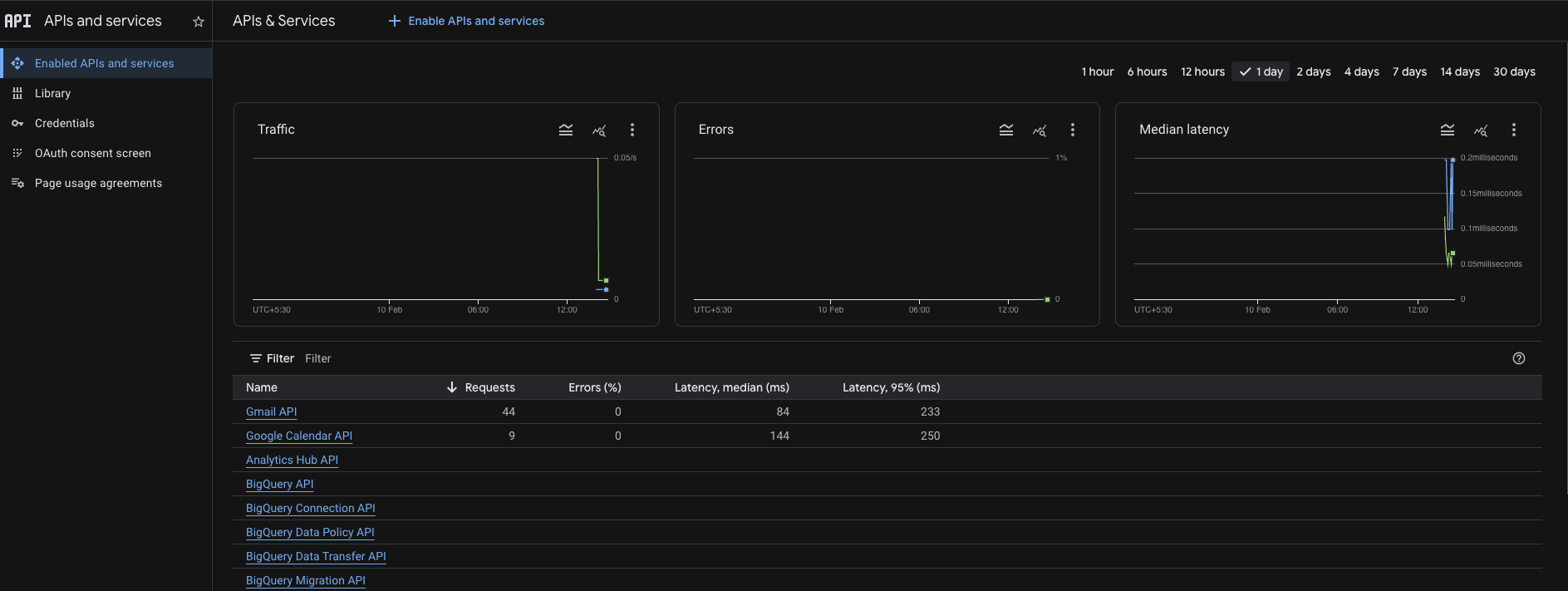
- Gmail API - Click Enable
- Google Calendar API - Click Enable
- Google Drive API - Click Enable
3
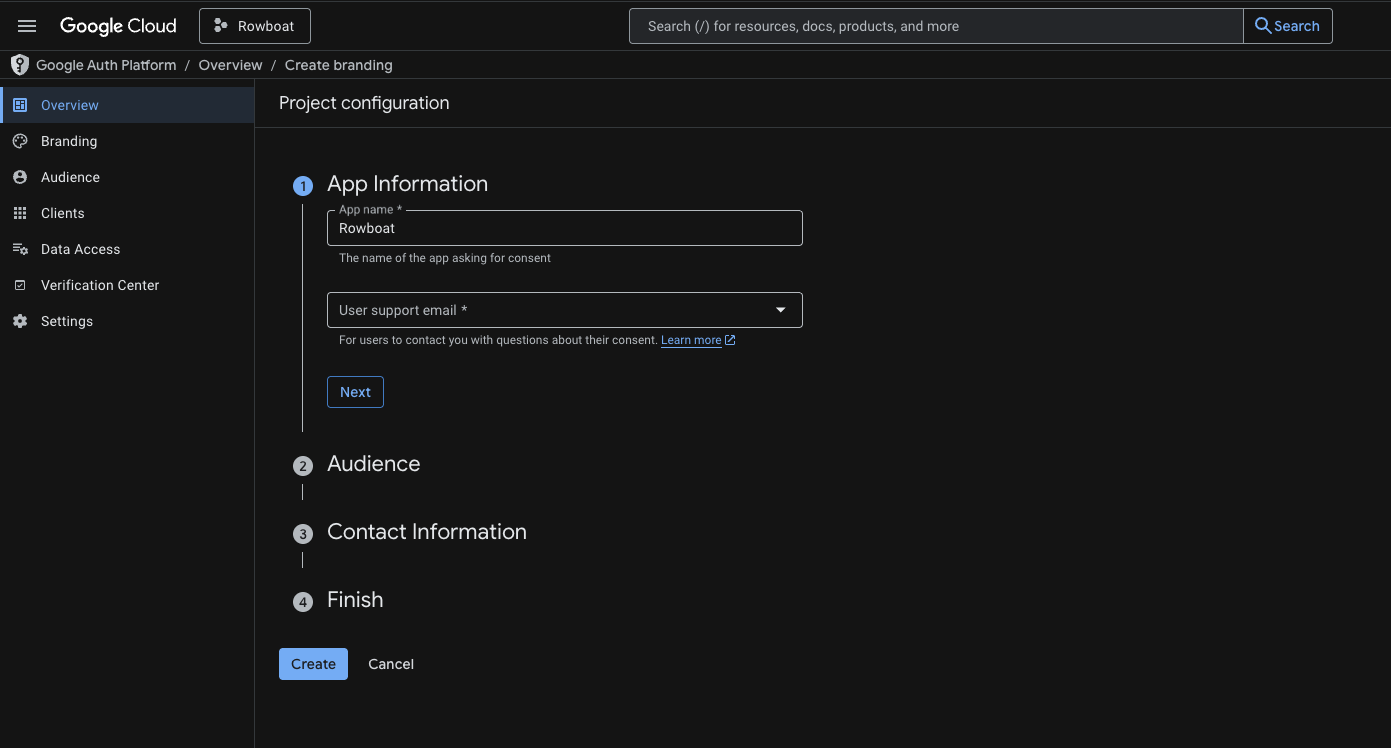
Configure OAuth consent screen
- Go to OAuth consent screen
- Choose External as audience type
- Fill in:
- App name: Rowboat (or your preferred name)
- User support email: Your email address
- Contact email: Your email address
- Click Save and Continue through all steps
You do NOT need to publish the app. Keeping it in Testing mode is completely fine for personal use.
4
Add test users
Since your app is in Testing mode, you must manually add authorized users.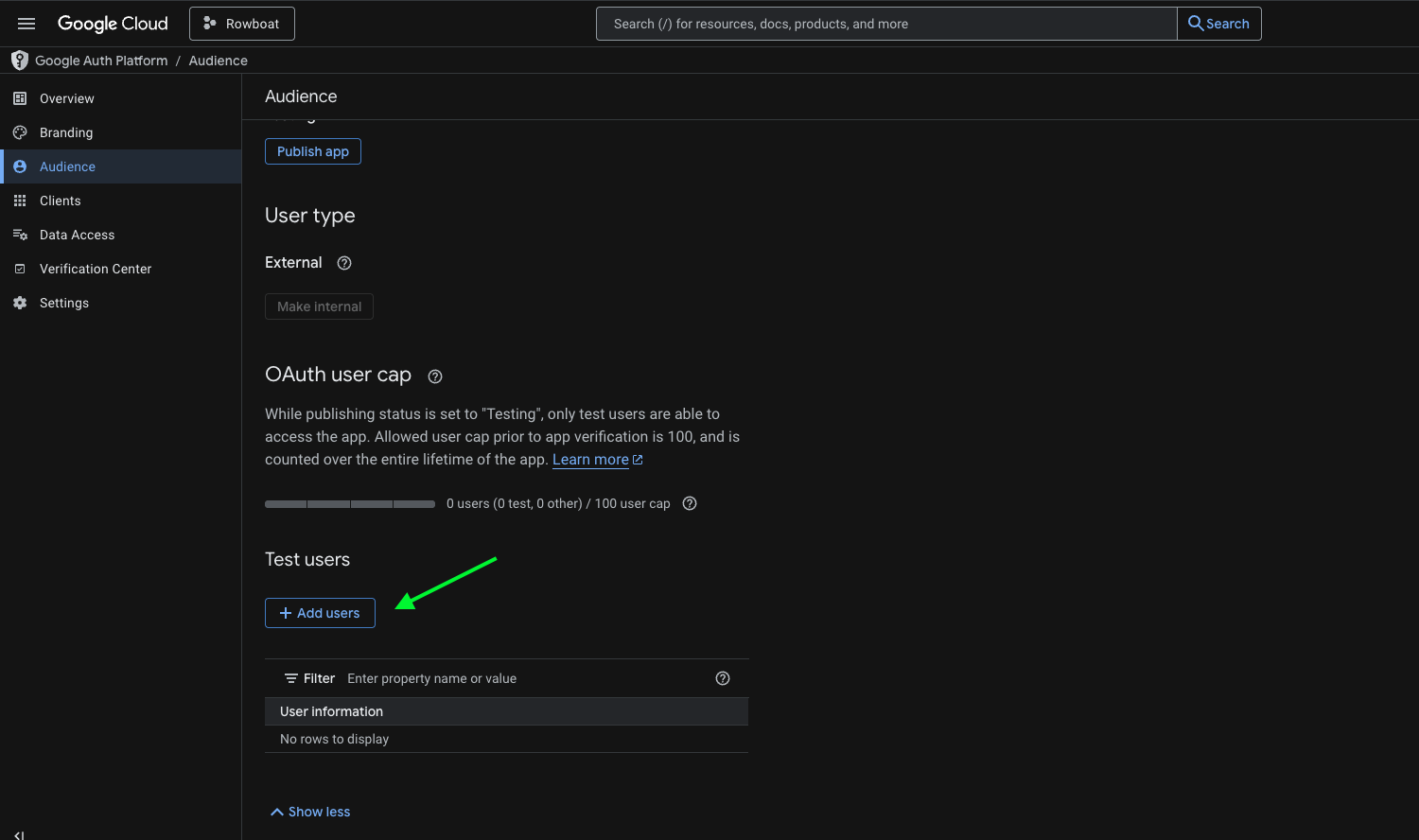
- Go to Test users
- Click Add Users
- Enter the email address you’ll connect with Rowboat
- Click Save
5
Create OAuth Client ID
- Go to Credentials
- Click Create Credentials → OAuth Client ID
- For Application type, select: Universal Windows Platform (UWP)
-
Enter:
- Name: Rowboat Desktop (or any name)
- Store ID: test (or any value)
- Click Create

6
Copy the Client ID
After creation, Google shows your credentials: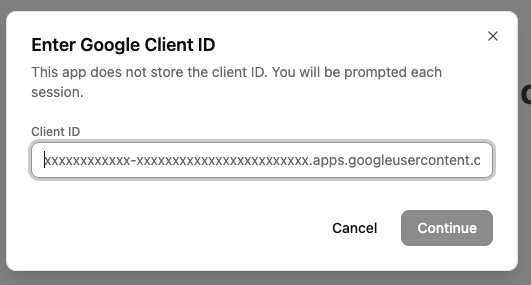
- Client ID - Copy this
- Client Secret - Not needed
Optional features
Voice notes
To enable voice note transcription with Deepgram:- Sign up at deepgram.com
- Get an API key from your Deepgram console
-
Create config file:
Voice memos are saved to
~/.rowboat/knowledge/Voice Memos/<date>/ as Markdown files with automatic transcription.Web search with Brave
To enable web search capabilities:- Get a Brave Search API key from brave.com/search/api
-
Create config file:
Research search with Exa
For enhanced research capabilities:- Get an Exa API key from exa.ai
-
Create config file:
Model configuration
Rowboat stores model config in~/.rowboat/config/models.json.
Example configurations
You can change models at any time through the Rowboat settings UI or by editing the config file directly.
Verification
After installation, verify everything works:-
Check data directory exists:
-
Verify knowledge folder was created:
You should see:
Welcome.mdPeople/Projects/Organizations/Topics/
-
Check logs for errors:
Troubleshooting
App won’t launch
macOS:- Right-click → Open (don’t double-click first time)
- Check Security & Privacy settings if blocked
- Run as Administrator if permissions error
- Check Windows Defender hasn’t quarantined the app
- Ensure AppImage is executable:
chmod +x Rowboat-*.AppImage - Install required dependencies:
sudo apt-get install libfuse2
Google OAuth fails
- Verify you added yourself as a test user
- Check that all three APIs (Gmail, Calendar, Drive) are enabled
- Ensure you created a UWP client type, not “Desktop app”
- Try revoking access at myaccount.google.com/permissions and re-authorizing
Knowledge graph not building
- Check that Gmail sync completed (look in
~/.rowboat/gmail_sync/) - Verify model configuration is valid in
~/.rowboat/config/models.json - Review logs in
~/.rowboat/logs/for errors - The graph builder runs every 30 seconds - give it a few minutes after first sync
Voice memos not transcribing
- Verify Deepgram API key is correct in
~/.rowboat/config/deepgram.json - Check you have recording permissions enabled for Rowboat
- Review logs for transcription errors