> ## Documentation Index
> Fetch the complete documentation index at: https://mintlify.com/rowboatlabs/rowboat/llms.txt
> Use this file to discover all available pages before exploring further.
# Google OAuth Setup
> Connect Gmail, Calendar, and Drive to Rowboat
Rowboat requires a Google OAuth Client ID to connect to Gmail, Calendar, and Drive. This guide walks you through generating your Client ID correctly.
You do NOT need to publish your app - keeping it in Testing mode is perfectly fine for personal use.
## Setup Process
Go to [Google Cloud Console](https://console.cloud.google.com/)
Make sure you're logged into the Google account you want to use with Rowboat.
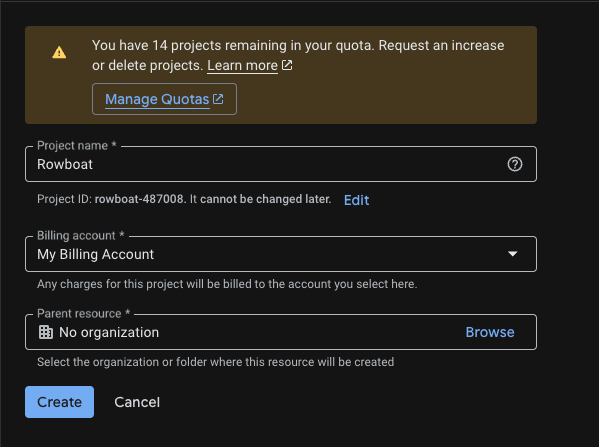
Visit the [project creation page](https://console.cloud.google.com/projectcreate)
1. Click **Create Project**
2. Give it a name (e.g. `Rowboat Integration`)
3. Click **Create**
Once created, make sure the new project is selected in the top project dropdown.
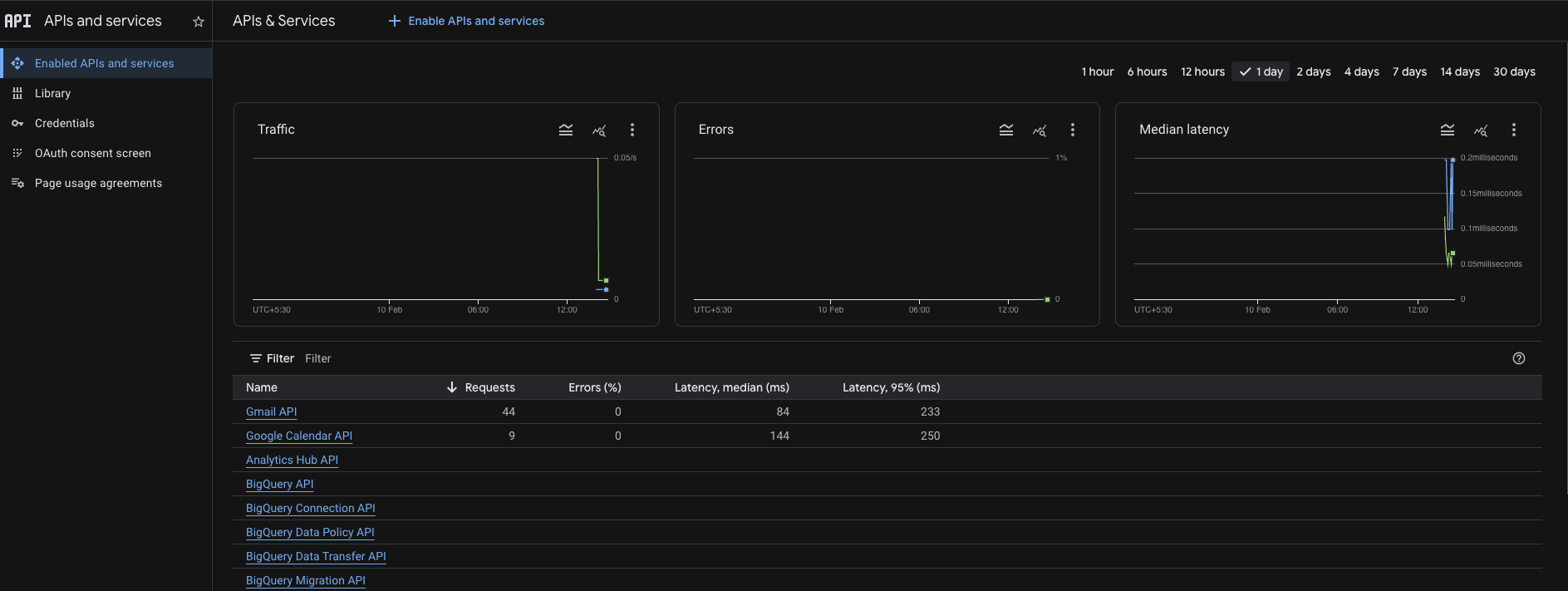
Enable these three APIs for your project:
```bash Gmail API theme={null}
https://console.cloud.google.com/apis/api/gmail.googleapis.com
```
```bash Calendar API theme={null}
https://console.cloud.google.com/apis/api/calendar-json.googleapis.com
```
```bash Drive API theme={null}
https://console.cloud.google.com/apis/api/drive.googleapis.com
```
For each API, click **Enable**.
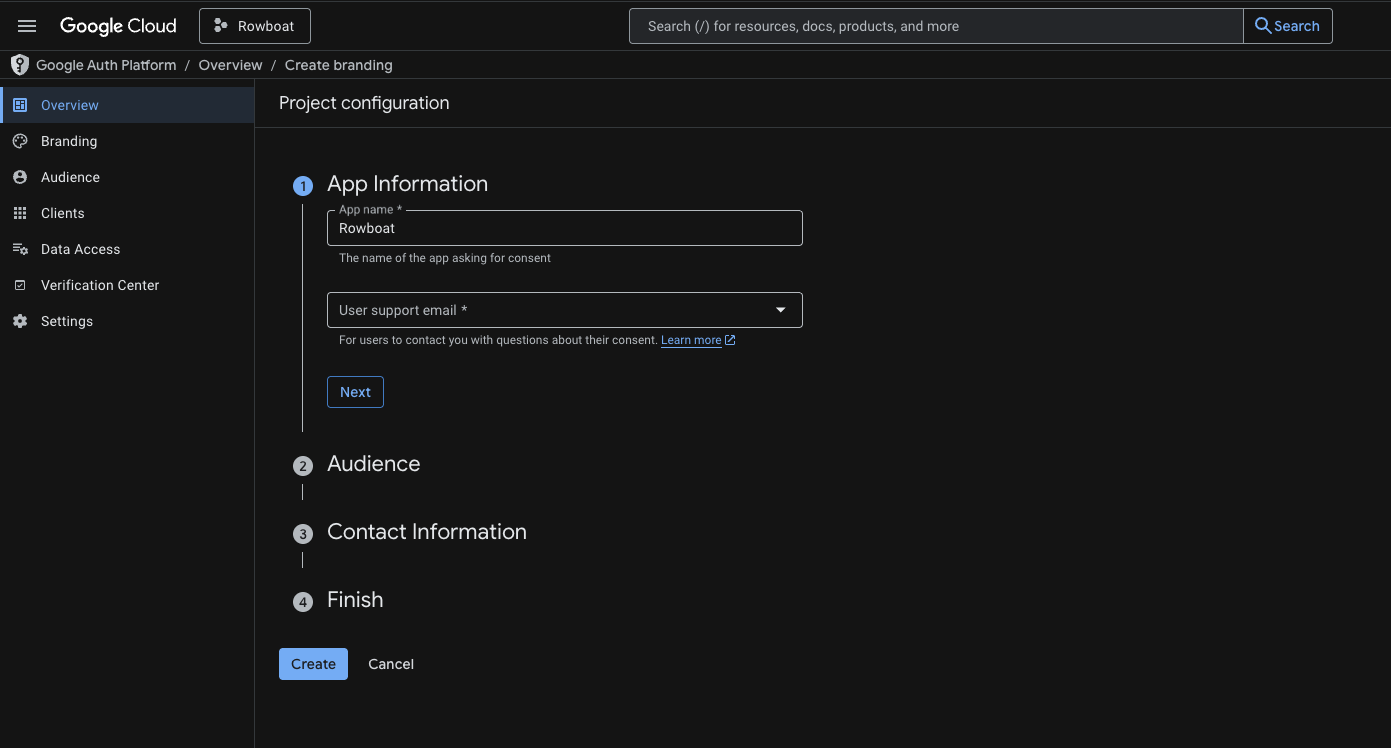
Go to the [OAuth consent screen page](https://console.cloud.google.com/auth/branding)
**App Information:**
* App name: e.g. `Rowboat`
* User support email: Your email
**Audience:**
* Choose **External**
**Contact Information:**
* Add your email address
Click **Save and Continue** through the remaining steps.
You do NOT need to publish the app - keeping it in **Testing** mode is fine for personal use.
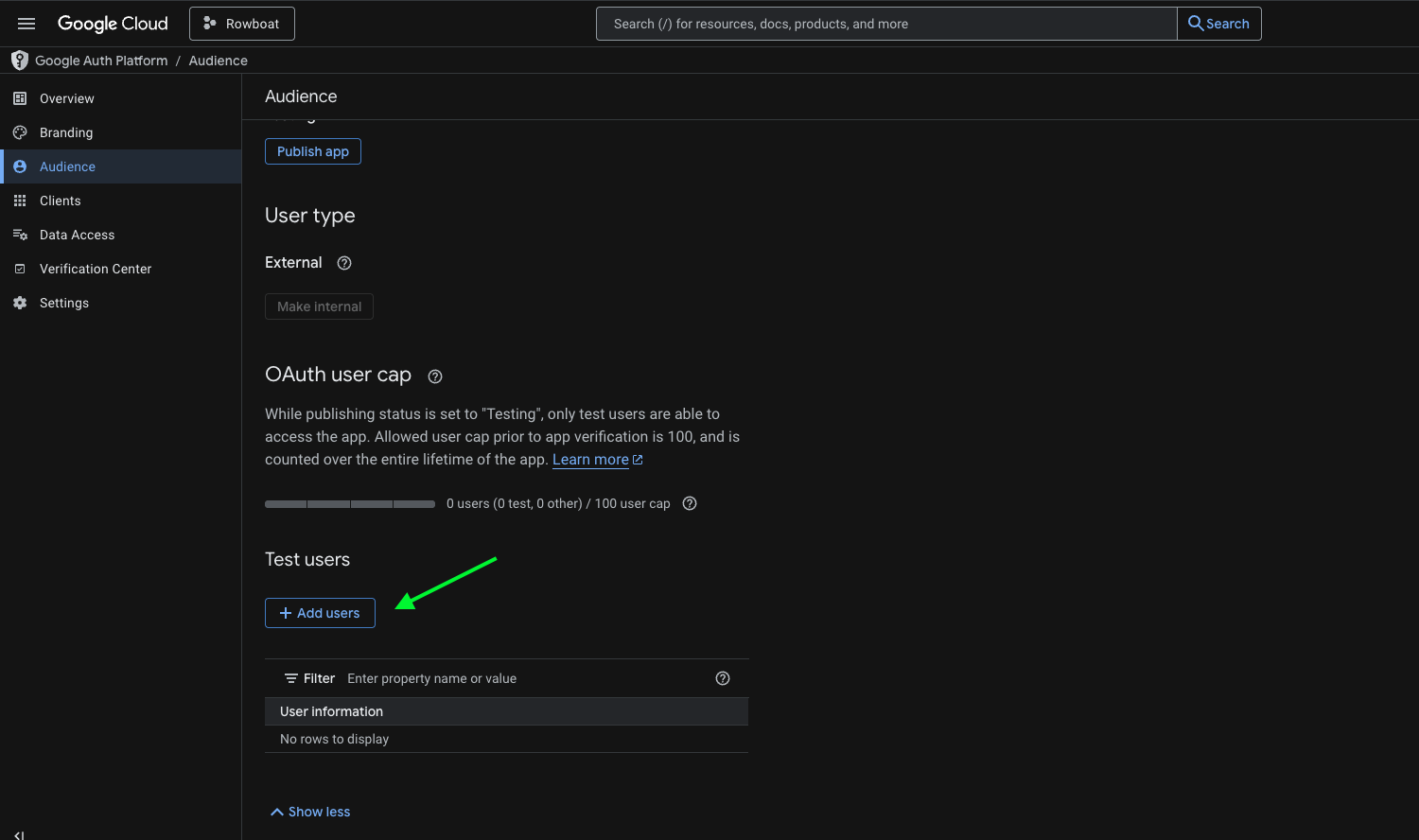
If your app is in Testing mode, you must add users manually.
Go to the [test users page](https://console.cloud.google.com/auth/audience)
Under **Test Users**:
1. Click **Add Users**
2. Add the email address you plan to connect with Rowboat
3. Save changes
Go to the [credentials page](https://console.cloud.google.com/auth/clients)
Click **Create Credentials → OAuth Client ID**
**Application Type:**
Select **Universal Windows Platform (UWP)**
* Name it anything (e.g. `Rowboat Desktop`)
* Store ID can be anything (e.g. `test`)
* Click **Create**
Make sure to select UWP (Universal Windows Platform) as the application type. This is required for Rowboat's authentication flow to work correctly.

After creation, Google will show:
* **Client ID**
* **Client Secret**
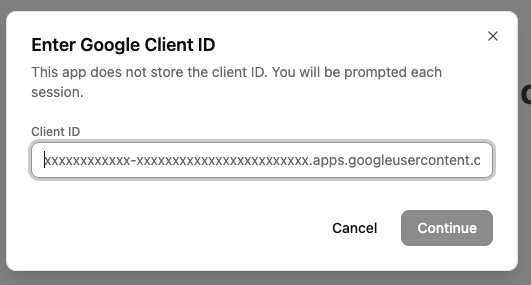
Copy the **Client ID** and paste it into Rowboat where prompted.
## Troubleshooting
### "Access blocked" error
If you see an "Access blocked" error when trying to connect:
1. Make sure you added your email as a test user (Step 5)
2. Verify that all three APIs (Gmail, Calendar, Drive) are enabled
3. Confirm you're using the same Google account that you added as a test user
### Can't find UWP option
If you don't see the Universal Windows Platform (UWP) option:
1. Make sure you're on the correct credentials page
2. Try selecting "Desktop app" as an alternative - it should work similarly
3. Contact support if issues persist
## Security Notes
* Your Client ID and credentials are stored locally on your machine
* Rowboat never sends your Google credentials to any external server
* You can revoke access at any time from your [Google Account settings](https://myaccount.google.com/permissions)
This documentation is built and hosted on [Mintlify](https://mintlify.com), a developer documentation platform.